




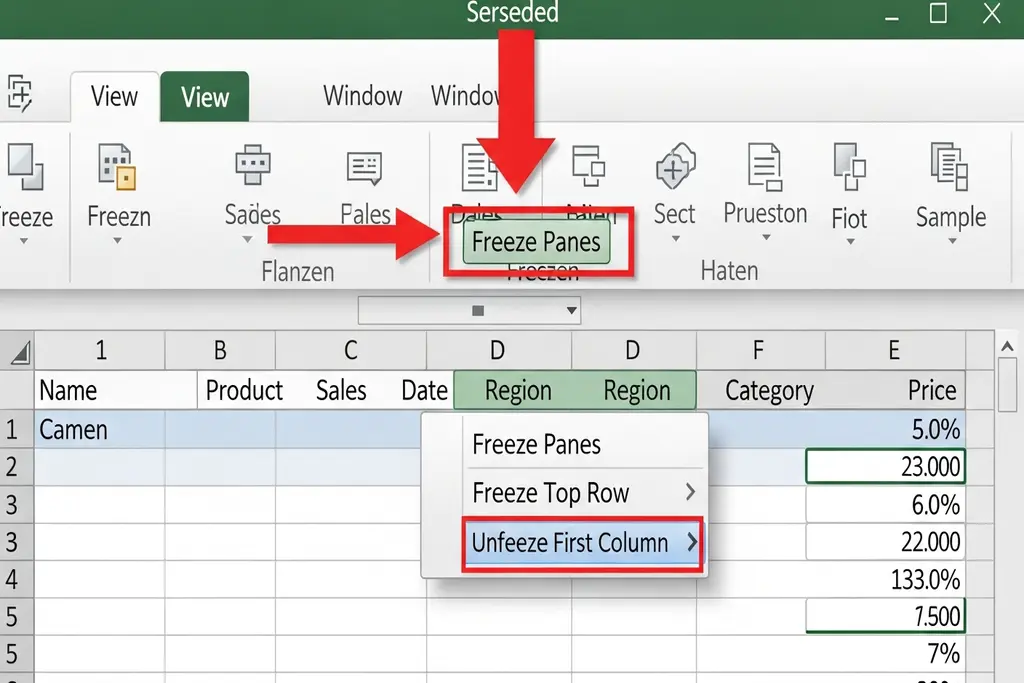
It is a good idea to freeze rows in Excel when you need to have the headers all the time in sight as you scroll the sheet. Nonetheless, there are occasions when a user ends up freezing rows accidentally or he/she simply does not require the frozen view any longer. Under these circumstances, it would be relevant to learn How to Unfreeze Row in Excel. This tutorial describes simple processes of deleting frozen rows in excel windows, Mac and excel online.
How to Unfreeze Row in Excel (Windows PC)
Follow these simple steps:
- Open your Excel file
- Go to the View tab
- Click Freeze Panes
- Select Unfreeze Panes
If any rows were frozen, they would instantly return to normal scrolling.
Unfreeze Row Shortcut for Windows
| Action | Steps to Follow |
| Unfreeze single frozen row | View → Freeze Panes → Unfreeze Panes |
| Unfreeze multiple frozen rows | View → Freeze Panes → Unfreeze Panes |
| If button disabled | Ensure worksheet is not protected |
How to Unfreeze Row in Excel (Mac)
- Open your Excel sheet
- Click the Layout tab (in older Mac versions) or View tab
- Click Freeze Panes
- Choose Unfreeze Panes
Your frozen row will now unfreeze.
Mac vs Windows Unfreeze Options
| Feature | Windows Excel | Mac Excel |
| Tab Location | View | View / Layout |
| Option Name | Unfreeze Panes | Unfreeze Panes |
| Result | Removes freeze | Removes freeze |
How to Unfreeze Row in Excel Online
Excel Online also allows unfreezing rows easily:
- Open your Excel file in browser
- Go to View
- Click Freeze Panes
- Select Unfreeze Panes
Learn to Unfreeze Row in Excel will assist you to manage your worksheet design and enhance workflow. Using Excel in Windows, Mac or Online, the procedure is easy and fast. In case you often deal with large data sheets, it is worth knowing about the possibilities of both freezing and unfreezing to save time and be able to navigate.