




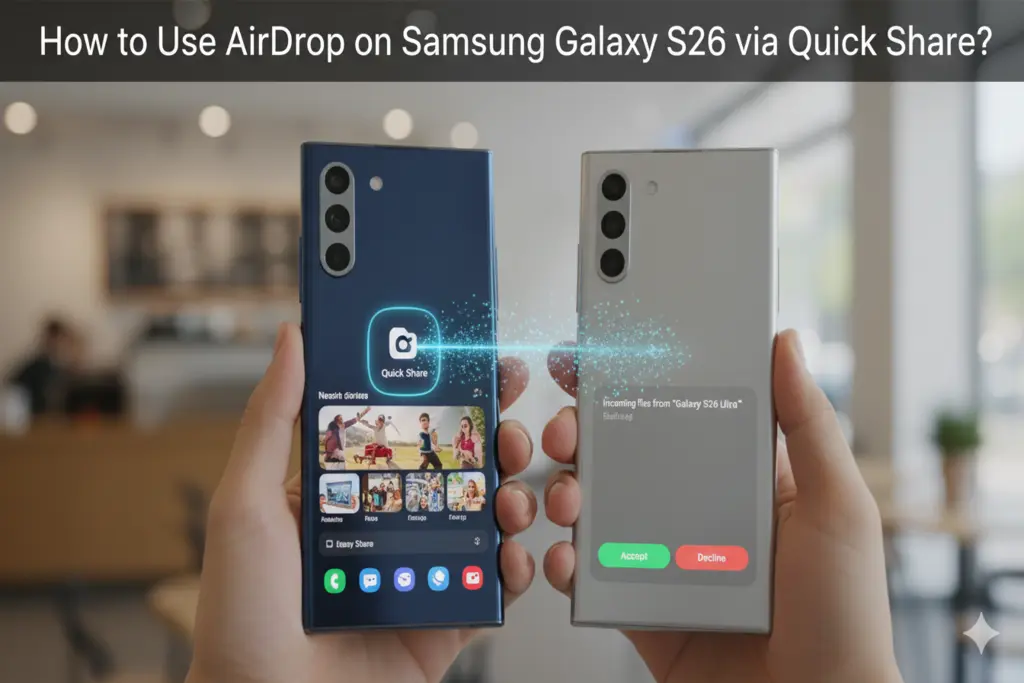
Over the years, it seemed that transferring photos, videos, and documents between Android and Apple devices was a task that could not be possible. Nonetheless, Samsung has fully closed this gap in its ecosystem with the launch of Galaxy S26 series, making AirDrop formally supported by its Quick Share functionality.
This is a revolutionary upgrade that will make Quick Share a universal file-sharing giant, and your Samsung device will be able to exchange information with iPhones, iPads, and MacBooks without any trouble.
You are either a new Galaxy S26 user or you are waiting to have the update land on your existing Samsung phone. This is a full time, timeless instruction on how to make this feature work and how to use it to interchange files across platforms.
What is Quick Share and AirDrop Integration?
Historically, Samsung Quick Share was compatible with Android or Windows gadgets only, whereas AirDrop was only compatible with Apple.
Samsung has modified the Quick Share protocol to identify and transmit files to active receivers of the AirDrop with this new integration. It means that you do not have to use third-party applications, cloud connections, or messaging systems that compress your files only to transfer a good video to an iPhone user.
Quick Share and AirDrop Integration Supported Devices
While this feature debuted with the flagship Samsung Galaxy S26 series, Samsung has built it as a software-level enhancement. The capability is actively rolling out to a wider range of the Samsung connected ecosystem, including:
- The Galaxy S26, S26+, and S26 Ultra
- Upcoming and recent Galaxy Z Fold and Z Flip models
- The popular Galaxy A series (via future software updates)
How to Send Files from Samsung to Apple via AirDrop
It is now as easy to share a file in your Galaxy smart phone with an Apple device as it is with another Android. The following is the step-by-step procedure:
Update Your Software
The Galaxy S26 (or other compatible device) must be on up-to-date system software before trying to transfer something, and the Quick Share application must be updated in the Galaxy Store.
Select Your File
Tap your Gallery, My Files or any application that has a document or media that you want to send. Press and hold the file to choose it.
Tap ‘Quick Share’
Press the ordinary Share button at the bottom of the screen, and choose Quick Share as an option on the menu.
Find the AirDrop User
Samsung phones will start scanning other devices in the area. With the new update, any active Apple devices with AirDrop to “Everyone for 10 Minutes” are now listed in your Quick Share radar with the rest of the Galaxy users.
Tap to Send
Tap the name or avatar of the Apple device you would like to share. The receiver will be notified via a normal AirDrop alert on his iPhone or Mac to accept the file. The transfer will take seconds when accepted within a secure and high-speed Wi-Fi Direct connection.
Can I use AirDrop on a Samsung phone?
Yes. Starting with the Galaxy S26 series, Samsung has integrated AirDrop compatibility into its native Quick Share feature, allowing you to send files directly to Apple devices.
Do I need to download an app to use this feature?
No. The AirDrop support is built directly into Samsung’s Quick Share system. As long as your system software is updated, the feature will work natively.
Will older Samsung phones get the AirDrop feature?
While the feature launched exclusively with the Galaxy S26 series, Samsung has confirmed that it will gradually expand support to additional devices, including the Galaxy A series, through future software updates.
Does sending files via Quick Share to AirDrop reduce quality?
No. Just like standard Quick Share or AirDrop transfers, the files are sent over a local peer-to-peer Wi-Fi connection, maintaining full original quality for photos, videos, and documents.