




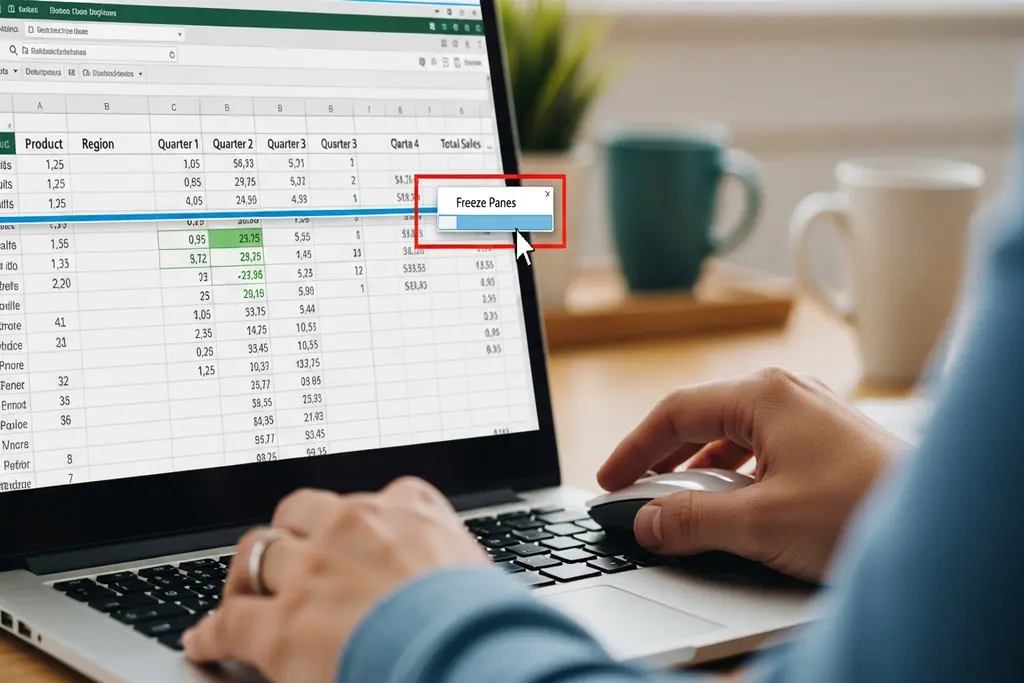
Microsoft Excel is one of the most widely used tools for data handling, reports, finance sheets, school work, and professional records. When working with large spreadsheets, it becomes difficult to remember column headings or important data when you scroll down. This is where the feature How to Freeze Row in Excel becomes extremely useful. Freezing a row allows it to stay visible on your screen no matter how far you scroll, making your work faster, clearer, and more organized.
Freezing rows is especially helpful when:
- You have long datasets
- You want to keep headings visible
- You are analyzing financial reports
- You are creating data sheets for business, education, or research
How to Freeze the Top Row in Excel
This is the most common and easiest method to keep header titles visible.
- Open your Excel file
- Click anywhere in the sheet
- Go to the View tab
- Click Freeze Panes
- Select Freeze Top Row
Now your first row will stay fixed even when you scroll down.
How to Freeze specific Row
If you want to freeze rows other than the top row:
- Click the row just below the row you want to freeze
- Go to the View tab
- Click Freeze Panes
- Select Freeze Panes
Example:
If you want to freeze Row 1 and Row 2, click on Row 3 first, then apply Freeze Panes.