



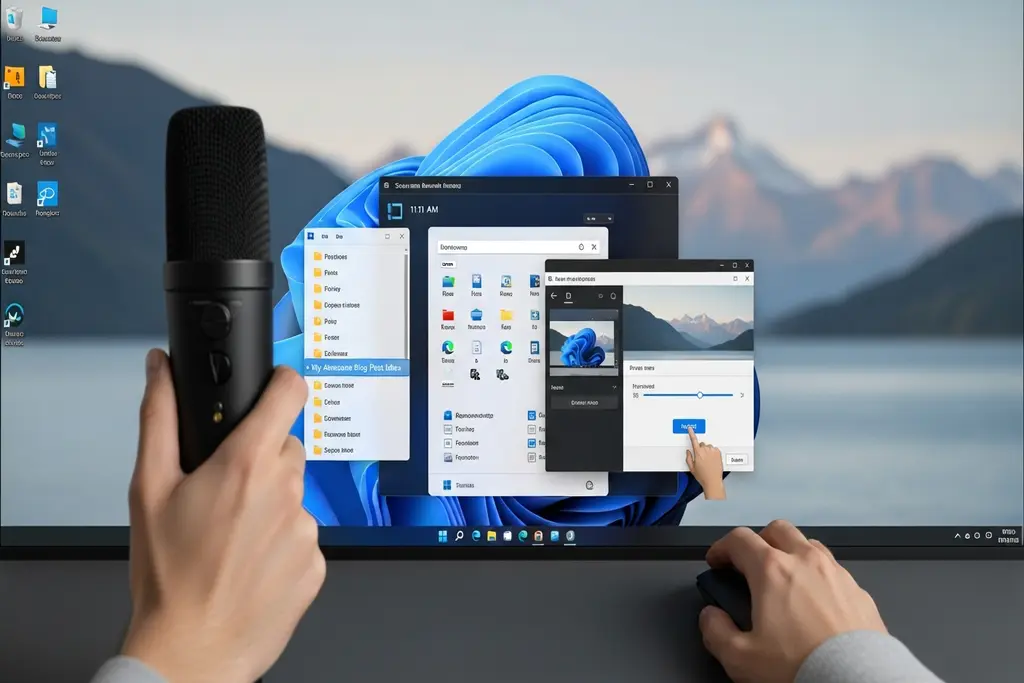
Learning to screen record in windows 11 can be of great use when creating a tutorial or recording online classes, saving a meeting, or recording a gameplay. Features are built-in in windows 11 and thus you may not always need the extra software. In this article, the steps of screen recording in Windows 11 are described in clear and easy ways.
How to Screen Record in Windows 11 Using Xbox Game Bar
- Press Windows + G on your keyboard
- The Xbox Game Bar will open
- Click on the Capture panel
- Press the Record button or use Windows + Alt + R
- To stop recording, click Stop or press Windows + Alt + R again
Your recorded video will be saved automatically in the Videos > Captures folder.
Xbox Game Bar records apps and screens, but it does not record the Windows desktop or File Explorer.
How to Screen Record in Windows 11 Using Snipping Tool
Microsoft has also added screen recording to the Snipping Tool, making how to screen record in Windows 11 even easier.
- Open Snipping Tool from the Start menu
- Click on the Record icon
- Select the screen area you want to record
- Click Start
- Click Stop when finished
The video can be saved or shared directly.
How to Screen Record in Windows 11 with Third-Party Software
If you want advanced features, another way to learn how to screen record in Windows 11 is by using third-party tools.
Popular options include:
- OBS Studio
- Bandicam
- Camtasia
These tools allow recording system audio, microphone, webcam, and full desktop.
Best Tips for Screen Recording in Windows 11
To get better results while learning how to screen record in Windows 11, keep these tips in mind:
- Close unnecessary apps before recording
- Use a microphone for clear audio
- Test recording settings first
- Save files in MP4 format for easy sharing
It is not difficult to learn how to screen record in Windows 11 because of available tools such as Xbox Game Bar and Snipping Tool. Windows tools suffice to perform simple tasks, but more advanced users have an opportunity to use third-party software. Using Windows 11 anyone can learn to screen records in a few clicks to work, study, or create content.
READ: More tech news