



Are you experiencing slow performance of your laptop, or is the screen stuck? Being aware of how to refresh your laptop is a necessary skill, every user of the computer must have. You need to know the keyboard shortcut to reload a webpage, you want to reorganize your desktop icons, you just want a complete system reset to make your computer run faster: all this is available here.
The various methods of updating a laptop are given in detail below with the options optimized to suit Windows 10 and Windows 11 users.
1. Quick Refresh: Shortcuts Desktop and Keyboard
When the majority of society gives the question of refreshing, it is the fast process of reloading the screen or web page.
Method A: The F5 Keyboard Shortcut
The most used refreshing way is through the use of Function keys to refresh your active window.
In case of Desktop/Windows Explorer: Press F5 key.1 This reloads the files in the active window (i.e. in case you have just pasted a file and it is not yet displayed).
In case of Web Browsers (Chrome, Edge, Firefox): Tap F5 or Ctrl + R to reload a page.
Pro Tip: To Hard Refresh, press Crtl + F5. This will clear the browser cache of that page and re-load the latest version of the site.3
Method B: Right-Click Refresh
This is a typical habit among Windows users.
Go to your Desktop or to a folder.
Click on any blank area with the right hand side button.
Click on Refresh on the context menu.
Note: It has been shown that hitting refresh on your computer will not speed up your computer (RAM-wise). It just reinvents the icons on the screen and changes the list of files.
2. Laptop speed up tips: How to refresh Laptop performance
You can hit F5, but it will not do any good in case you are not satisfied with the performance of your laptop and want to restart it. Rather, these steps are to be used to delete temporary junk data.
Clear Temporary Files
With time the temporary files accumulating in your laptop can make it slow.4
Press windows key + R to open up the run dialog box.
Type %temp% and hit Enter.
A folder will open. Select all files (Press Ctrl + A) then press Delete.
(Close any files that are being used).
Restart Windows Explorer
There is no need to restart the entire laptop when your taskbar is frozen, or you are missing icons.
Clicking on the keys Ctrl, Shift and Esc opens Task Manager.5
In the list of processes, find Windows Explorer.
Click it with the right-hand and choose Restart.
Disable Startup Apps
Speed up your boot time by preventing unneeded applications from opening as soon as the laptop is turned on.
Open Task Manager (Ctrl+ Shift + Esc).
Go to the Startup tab.
Right-click on the apps that you are not in need of (such as Spotify or Skype) and use Disable.
3. The Deep Refresh: Restart this Computer
When your laptop is very slow, there are a lot of viruses, it is crashing frequently, then the Windows System Refresh is the best choice. This will restore windows without losing your personal photos/documents.
How to restart windows 10/11 (Keep My Files)
Such is the current meaning of refreshing a laptop OS.
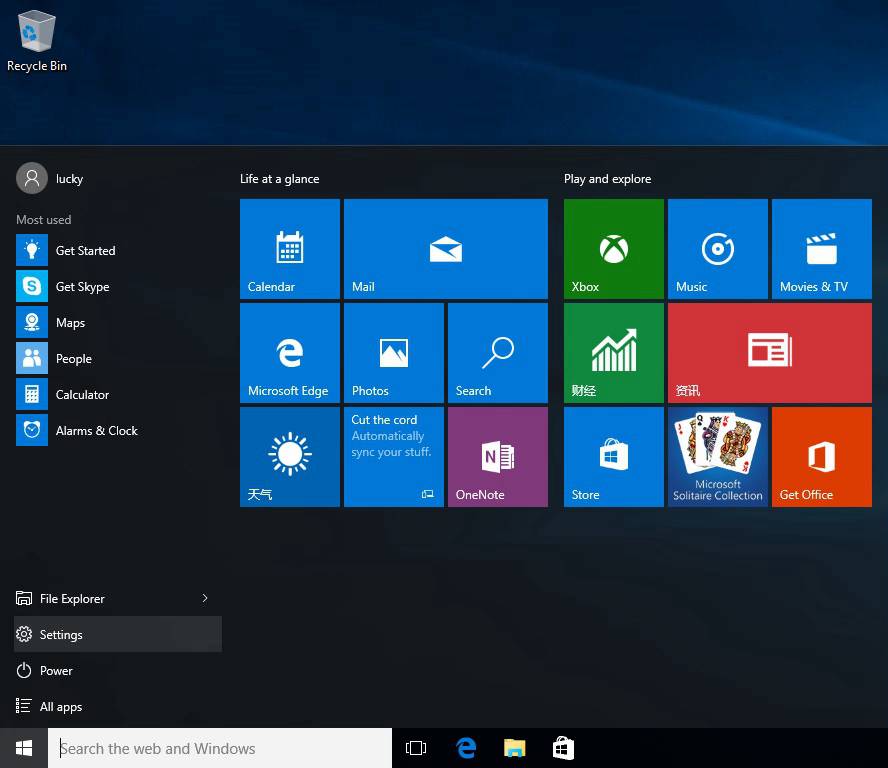
Click on the Start button and select Settings (Gear Icon).
Windows 10 Select Update & Security or Windows 11 System > Recovery.
Click on Recovery.
In the reset PC, click the Get Started or Reset PC.
Important Detail: Choose the alternative of keeping my files.What this will do: It will delete applications and settings but will leave your personal files untouched. It then reloads a new installation of Windows.