



Close Menu
    What's Hot
    NASA Announces Date for the Longest Solar Eclipse in 100 Years

    NASA Announces Date for the Longest Solar Eclipse in 100 Years

    December 12, 2025
    How to Scan a Wi-Fi QR Code

    How to Scan Wi-Fi QR Code

    December 12, 2025
    Huawei Mate X7 Specs, Features and Price in Pakistan

    Huawei Mate X7 Specs, Features and Price in Pakistan

    December 12, 2025

    Subscribe to Updates

    Get the latest creative news from FooBar about art, design and business.

    Facebook X (Twitter) Instagram
    • News
    • Entertainment
    • International
    • Sports
    • Trends
    • Gold Prices Today
    Facebook X (Twitter) Instagram
    Pakistan Truth
    • News
    • Entertainment
    • International
    • Sports
    • Trends
    • Gold Prices Today
    Pakistan Truth
    You are at:Home»Uncategorized»How to Scan Wi-Fi QR Code
    Uncategorized

    How to Scan Wi-Fi QR Code

    Farhan QureshiBy Farhan QureshiDecember 12, 2025Updated:December 12, 2025No Comments4 Mins Read
    Facebook Twitter Pinterest LinkedIn Tumblr Email
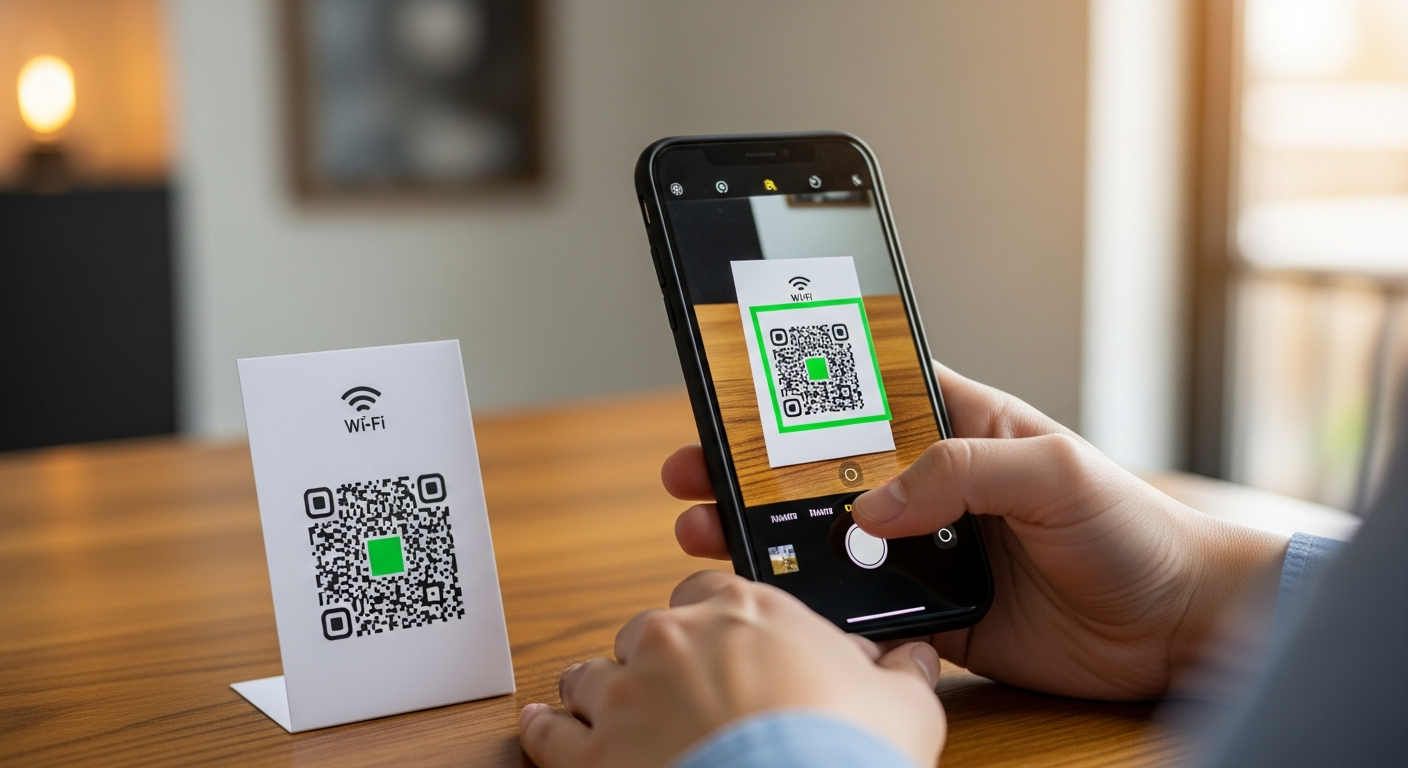
    How to Scan a Wi-Fi QR Code
    Share
    Facebook Twitter LinkedIn Pinterest Email

    It was so annoying to share Wi-Fi passwords. It frequently required turning a dusty router backwards in order to read a minute amount of text or to spell out complicated series of random letters such as X7q#9Lp! to a guest. Fortunately, technology has improved to address such a pain point.

    Wi-Fi QR (Quick Response) codes have made the process of connection very simple. One scan can relay directly the Network Name (SSID), the type of encryption, and the password to your gadget. This will enable you to be connected to a secure network in a matter of seconds without writing even a single word. You can scan these codes easily regardless of the smartphone you are using, laptop system, or desktop system.

    Scan Wi-Fi QR Code on Android

    On the largest number of recent Android gadgets (Android 10 and above), QR code recognition is incorporated directly into the camera application of the operating system. There is no need of downloading a third party scanner.

    • Tap your phone and press the Camera application.
    • Keep your phone straight and aim the camera at the Wi-Fi QR code. Make sure that the code is not dark in the frame.
    • Then wait until a small notification banner or a pop-up chip appears on the screen. It will normally show the Wi-Fi name or indicate Join Network.
    • Tap that notification. The Wi-Fi setup will automatically set up on your phone, and you will be connected with the internet as soon as you are connected to the Wi-Fi.

    Scan Wi-Fi QR Code on iPhone

    A few years prior to this, Apple introduced native QR code scanning in iOS. This is a smooth procedure that can be performed on any iPhone with the iOS 11 (or above) without any settings adjustments.

    • Launch the Camera application on your lock screen or home screen.
    • Hold your iPhone in such a way that the QR code is in the camera. There is no need of pressing on the shutter button to take a photo.
    • Within seconds, a yellow notification bubble will appear on your screen regarding the QR code. It will be reading Join [Network Name].
    • Tap the yellow bubble. You will be presented with a system dialogue that will require confirmation; tap Join and the connection is complete.
    Read Also:  How to Check Call Forwarding on Any Phone

    Scan Wi-Fi QR Code on PC

    A laptop scan of a QR code is a little different as computers are not first-mover devices. But when your laptop has an inbuilt web camera, then you can read the code through the tools provided by windows itself.

    • Select the Start button and type the name of the native application in the search box e.g. Camera.
    • The camera settings right-hand menu has an icon called Barcode. In case you do not see it, then you can just hold the code up and that will start the auto-detection.
    • Point the actual QR code (a piece of paper or a different phone screen) to the web-cam of your laptop.

    Upon recognizing the code, Windows will generally decode the information and the password text will be copied to allow you to do so. This password can then be manually typed into your Wi-Fi log-in screen.

    Scan Wi-Fi QR Code on Desktop

    The term desktop tends to be taken to mean that you are looking at the QR code on a computer – maybe it was forwarded to you in email or it is on a web site on your screen. As you cannot point a web camera into your own screen, then you need a software solution.

    • visit the webpage or image with the QR code and use the Google Chrome browser.
    • Click on the QR code image with the right-hand.
    • Select the context menu, which will display “Search image with Google” in the menu.

    A bottom right side panel with Google Lens will appear. It will examine the picture, recognize the QR code and form the network credential (password and SSID) in plaintext so that you can save and paste them easily.


    Read Also:  How to Activate HBL Debit Card?

    Share. Facebook Twitter Pinterest LinkedIn Tumblr Email
    Previous ArticleHuawei Mate X7 Specs, Features and Price in Pakistan
    Next Article NASA Announces Date for the Longest Solar Eclipse in 100 Years
    Farhan Qureshi
    • Website

    Farhan Qureshi is a political analyst who writes about science policies and national funding programs. His work focuses on the intersection of governance, innovation, and public policy, highlighting how scientific advancement shapes national development.

    Related Posts

    What is a Postal Address

    What is a Postal Address? Learn How to Write it

    December 4, 2025
    How to Unsubscribe Zong Packages

    How to Unsubscribe Zong Packages

    December 3, 2025
    Check Call Forwarding

    How to Check Call Forwarding on Any Phone

    December 3, 2025
    Leave A Reply Cancel Reply

    Latest Posts
    NASA Announces Date for the Longest Solar Eclipse in 100 Years

    NASA Announces Date for the Longest Solar Eclipse in 100 Years

    December 12, 20251
    How to Scan a Wi-Fi QR Code

    How to Scan Wi-Fi QR Code

    December 12, 20252
    Huawei Mate X7 Specs, Features and Price in Pakistan

    Huawei Mate X7 Specs, Features and Price in Pakistan

    December 12, 20251
    Pakistan Idol Controversy: M Ibrar Shahid Quits Show, Claims Unfair Treatment

    Pakistan Idol Controversy: M Ibrar Shahid Quits Show, Claims Unfair Treatment

    December 12, 20252
    Don't Miss

    Top 10 Hi-Tea Restaurants In Lahore For A Perfect Outing

    By Usman LatifMarch 14, 2025

    Lahore is a well-known city known for its huge food culture, & hi-tea has become…

    Top 5 places to Visit in Kashmir

    Top 5 Places to Visit in Kashmir

    April 5, 2025
    India Planning Military Action Against Pakistan Within 36 Hours Tarar

    India Planning Military Action Against Pakistan Within 36 Hours: Tarar

    April 30, 2025
    Stay In Touch
    • Facebook
    • Twitter
    • Instagram

    Subscribe to Updates

    Get the latest creative news from SmartMag about art & design.

    NASA Announces Date for the Longest Solar Eclipse in 100 Years

    NASA Announces Date for the Longest Solar Eclipse in 100 Years

    December 12, 2025
    How to Scan a Wi-Fi QR Code

    How to Scan Wi-Fi QR Code

    December 12, 2025
    Huawei Mate X7 Specs, Features and Price in Pakistan

    Huawei Mate X7 Specs, Features and Price in Pakistan

    December 12, 2025
    Pakistan Idol Controversy: M Ibrar Shahid Quits Show, Claims Unfair Treatment

    Pakistan Idol Controversy: M Ibrar Shahid Quits Show, Claims Unfair Treatment

    December 12, 2025
    Popular

    Top 10 Hi-Tea Restaurants In Lahore For A Perfect Outing

    March 14, 2025
    Top 5 places to Visit in Kashmir

    Top 5 Places to Visit in Kashmir

    April 5, 2025
    India Planning Military Action Against Pakistan Within 36 Hours Tarar

    India Planning Military Action Against Pakistan Within 36 Hours: Tarar

    April 30, 2025
    India Suspends Indus Waters Treaty and Closes Attari Border After Pahalgam Attack

    India Suspends Indus Waters Treaty and Closes Attari Border After Pahalgam Attack

    April 23, 2025
    Latest News
    NASA Announces Date for the Longest Solar Eclipse in 100 Years

    NASA Announces Date for the Longest Solar Eclipse in 100 Years

    December 12, 2025
    How to Scan a Wi-Fi QR Code

    How to Scan Wi-Fi QR Code

    December 12, 2025
    Huawei Mate X7 Specs, Features and Price in Pakistan

    Huawei Mate X7 Specs, Features and Price in Pakistan

    December 12, 2025
    Pakistan Idol Controversy: M Ibrar Shahid Quits Show, Claims Unfair Treatment

    Pakistan Idol Controversy: M Ibrar Shahid Quits Show, Claims Unfair Treatment

    December 12, 2025
    About Us
    About Us

    Pakistan Truth is your go-to platform for authentic insights into current affairs, entertainment, sports, and more, with a strong focus on the Pakistan region.

    Unveiling the truth, shaping perspectives—Pakistan Truth.

    Email Us: [email protected]

    Facebook X (Twitter) Instagram
    © 2025 PakistanTruth. All Rights Reserved.
    • About Us
    • Contact Us
    • Terms & Conditions
    • Privacy Policy

    Type above and press Enter to search. Press Esc to cancel.